How to restart CHARON-VAX/AXP on Windows automatically on failure
- Bruno Miretti (Deactivated)
- Kirill Nikolaev (Unlicensed)
- Tony DiFruscia (Unlicensed)
Table of contents
Description
In case of unrequested CHARON virtual machine stop, it is possible, using the Windows Service Recovery system, to restart CHARON emulator automatically
Step-by-step guide
Additional considerations
- To perform this procedure, you must be a member of the Account Operators group, the Domain Admins group, the Enterprise Admins group, or you must have been delegated the appropriate authority. As a security best practice, consider using Run as to perform this procedure.
- Recovery actions are available only on computers running Windows 2000 or later.
- Setup your CHARON virtual machine as a service. To do so, refer to the corresponding documentation.
Example: Running CHARON-AXP for Windows - Running as system service - Configure the Recovery settings either from the GUI or from the command line as explained below
Restarting CHARON emulator does not mean booting the OpenVMS or Tru64 virtual system. You will need to setup the flags at SRM level for autoboot.
Example:
|
Configuration using Service manager / GUI
- Open the Windows service manager: click Start, click in the Start Search box, type services.msc, and then press ENTER
- Locate the service you've created using the CHARON service manager utility (or using the CHARON Virtual Machines Manager in case of CHARON versions above 4.7). Double click on the service to open the properties window and select the Recovery tab:
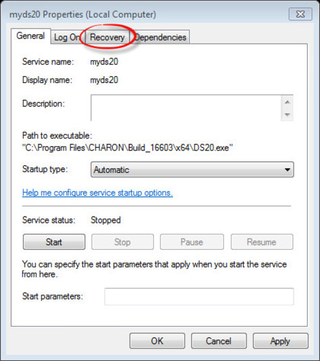
- Configure the service manager to restart the CHARON service after a specified amount of time
Example: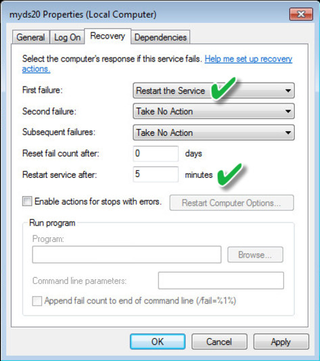
 It is possible to prevent the service from being restarted multiple times in a day by specifying the "Reset fail count after" parameter.
 Issue: the counter cannot be less than 1 day using the GUI, zero means always use the "First failure" defined action. If you want to specify less than one day, use the command line settings as explained in the next chapter
Configuration using sc / command line
In the simple example below, we will setup the recovery options to:
- Restart the service named "myds20" after failure, 30 seconds after failure detection. This will occur:
- If the 1st attempt to start the services (after setting the recovery options) fails
- If the service has been restarted and is running for more than 10 minutes. This is to avoid multiple restarts on service failure.
- Execute an "
msg" command on next failures, one second after failure detection - Reset the failure counter if the service is running for more than 10 minutes.
 The specified timers will have to be customized according to your configuration
- Open "
cmd.exe" from the "Start" menu in "Run as Administrator" mode Execute the following commands:
C:\Windows\system32>sc failure myds20 reset= 600 actions= restart/30000/run/1000/run/1000C:\Windows\system32>sc failure myds20 command= "C:\Windows\System32\msg.exe * \"myds20 virtual machine failed after restart attempt\""C:\Windows\system32>sc qfailure myds20[SC] QueryServiceConfig2 SUCCESSSERVICE_NAME: myds20RESET_PERIOD (in seconds) : 600REBOOT_MESSAGE :COMMAND_LINE : C:\Windows\System32\msg.exe *"myds20 virtual machine failed after restart attempt"FAILURE_ACTIONS : RESTART -- Delay = 30000 milliseconds.RUN PROCESS -- Delay = 1000 milliseconds.RUN PROCESS -- Delay = 1000 milliseconds. White space is mandatory after the "parameter=" option The Windows service manager may not reflect the specified values. Example: 10 minutes for reset failure count will appear as 0 in the GUI The "reset=" value is expressed in seconds The "actions=" timer values are expressed in milliseconds
Links
- Microsoft Technet / Set up Recovery Actions to Take Place When a Service Fails: https://technet.microsoft.com/en-us/library/cc753662.aspx
- Microsoft Technet / sc failure: https://technet.microsoft.com/en-us/library/cc742019.aspx
Related articles
© Stromasys, 1999-2024 - All the information is provided on the best effort basis, and might be changed anytime without notice. Information provided does not mean Stromasys commitment to any features described.