Installing a License on the VE License Server
Contents
Important Information to Protect the License Validity
Certain actions can invalidate your license. Therefore, once you have installed your license, please note the following points:
For cloud deployments: if supported by the cloud provider, the VE license server instance can be moved to a different subnet, as long as the original instance can be moved. It is also possible to backup and restore (to the same instance) the license server data. Please note that is not possible to use such a backup to revert to a previous license version. However, the following actions will invalidate the license: If your license is invalidated for whatever reason and you cannot revert the action that caused the invalidation, you must request a new license from Stromasys. Therefore, planning your license infrastructure should include a backup license server to insure continuity until you received your new primary license.
This is recorded on the license server in /opt/license-server/instances.db.
If this file is lost, the license is not invalidated from the license server's point of view, but it can no longer be used from the Charon host instances as they will not register a second time. The Charon host instances would have to be recreated (fresh instance launch from a supported marketplace instance). Therefore, it is very important to backup up the instance database file. If a peer license server is used, the databases are synchronized between the two servers providing another level of data backup.
Overview - Requesting and Installing a License
Overview of the basic steps to request and install a license: These basic steps are described in more detail below.
License Installation Using the Command-Line
The following sections will show how to perform a license installation on the VE license server. Alternatively, you can use the web-based GUI (see VE License Server Web-based Management GUI)
Running the esxi_bind Command (VMware environment only)
The esxi_bind command sets up the necessary communication connection between the VE license server and the ESXi host / the vCenter Server. It must be run on the license server (and the backup license server, if applicable): Perform the following steps: <username> is a user on the ESXi host or vCenter Server (see notes below). Important notes regarding the user on the ESXi host or the vCenter Server: The user must have at least the following global permissions (i.e. the permissions cannot be limited to a specific VM): Please note: if username and/or password contain Unix shell meta-characters, these characters must be escaped (enclose the string in single quotes, or add a backslash character in front of the meta-character).# ssh <user>@<license-server-ip>
where# sudo -i# /opt/license-server/esxi_bind -a <address> -u <username> -p <password>where
esxi_bind parameter example: -u myusername
esxi_bind parameter example (quotes are mandatory): -u 'mydomain\myusername'
esxi_bind parameter example: -u myusername@mydomain
Collecting the Fingerprint Data on the License Server
The fingerprint is collected on the license server using the c2v utility. Perform the following steps to collect the fingerprint on the license server and (if applicable) the backup license server:# ssh -i ~/.ssh/<mykey> <user>@<license-server-ip>
where
(for an on-premises VMware installation where login with username/password is allowed, it is not needed)
for an instance installed from a prepackaged Charon supported marketplace image, use sshuser for Charon-SSP and centos for Charon-PAR)# sudo -i# /opt/license-server/c2v where[-a] --filename <my-file>.c2v --platform <my-platform>-a parameter creates the fingerprint for a AutoVE license. General VE mode and AutoVE mode are mutually exclusive.
Sending the C2V File to Stromasys and Receive License Data File
Stromasys or your Stromasys VAR will provide you with an email address to which you should send the C2V file you created in the previous step. Please also indicate the following: License requirements based on your contract with Stromasys (product version, number of concurrent instances, is this the main or the backup license, etc.). In response, you will receive two files: It is strongly recommended to keep the V2C and text files to have a record of licenses received and updated over time.
Installing the License Data on the License Server
Please review the text file carefully before installing the license to make sure the content is what you expected. The license data is installed on the license server using the v2c utility. Perform the following steps to install the license on the license server (if a backup license server is to be used, it needs its own license): After the installation of the V2C file, the license server will be restarted. This restart will not affect running emulators. However, depending on the emulator product, it could be that the license server does not correctly display the license usage ( Please note: The following example shows the initial installation of a V2C file: Please note:# ssh -i ~/.ssh/<mykey> <user>@<license-server-ip>
where
(for an on-premises VMware installation where login with username/password is allowed, it is not needed)
for an instance installed from a prepackaged Charon supported marketplace image, use sshuser for Charon-SSP and centos for Charon-PAR)# sudo -i# /opt/license-server/v2c -f <my-file>.v2cwhere <my-file>.v2c is the path and name of the V2C (vendor-to-customer) file.
Starting with VE license server version 1.1.23, the v2c tool will show the difference between old and new license for a license update and require confirmation. Please review the differences carefully before confirming.license_viewer -u output and license server log file) until the emulators connect to the license server again after the next check interval has expired (default 1 hour).$ sudo /opt/license-server/v2c -f mylicense.v2c
<<V2C>> Going to import "mylicense.v2c" ...
<<V2C>> Imported "mylicense.v2c" successfully.
<<V2C>> Restarting license server ...
<<V2C>> Done
-s option.
Verifying License Installation and License Content
Checking the License Server Log file
Check the license server log file to see if the server started successfully or reported an error. Use the following command (as the privileged user):# cat /opt/license-server/log/license.log
The log should indicate that the license server is ready to serve licenses.
Using the license_viewer Program to Display the Content of a License
The license server provides a license_viewer program to view the content of the license. To run it, use the following command (as the privileged user): # The following sample shows the output for several different licenses: * New version of the countdown license. Starting with VE license server v2.4.8, the countdown hours can be combined with an expiration date. If one of them ends, the license becomes invalid. /opt/license-server/license_viewerRegular VE license on AWS Regular VE license on physical server <<License Viewer>> Current license:License Fingerprint: 07792211fc8ce3fdc085 <truncated>Customer Name: StromasysLicense ID: 01.00000001.002.020Key Type: NORMALPlatform: amazon.awsRelease Date: 2021-06-17 13:08:01Grace Period: 120 minutesLicense Check Interval: 60 minutesVirtual Hardware: Charon-SSP/4M,Charon-SSP/4UProduct Code: Charon-SSP/ALLExpiration Date: 2021-12-22 23:55:00Major Version: 5Minor Version: 3Maximum CPU: 64Maximum Virtual Memory: 1048576MBInstances Allowed: 3<<License Viewer>> Current license:License Fingerprint: 07792211fc8ce3fdc085 <truncated>Customer Name: StromasysLicense ID: 03.00000003.002.006Key Type: NORMALPlatform: physical.machineRelease Date: 2021-12-08 13:18:32Grace Period: 120 minutesLicense Check Interval: 60 minutesVirtual Hardware: Charon-PA9-64-L1Product Code: CHPA9-64-L1-IPExpiration Date: 2022-06-08 23:55:00Major Version: 3Minor Version: 0Maximum CPU: 1Maximum Virtual Memory: 2048MBInstances Allowed: 10Passphrase: 77U8-HXR9-VUFK-1B9VCountdown license* on physical server AutoVE license on AWS <<License Viewer>> Current license:License Fingerprint: 5f9d9f13f390e3b071 <truncated>Customer Name: StromasysLicense ID: 01.00000001.002.194Key Type: COUNTDOWNCountdown: 360 hour(s)Expiration Date: 2025-12-17 23:55:00Platform: physical.machineRelease Date: 2021-07-29 09:06:15Grace Period: 480 minutesLicense Check Interval: 60 minutesVirtual Hardware: Charon-SSP/4UProduct Code: testMajor Version: 5Minor Version: 3Maximum CPU: 4Maximum Virtual Memory: 10240MBInstances Allowed: 4<<License Viewer>> Current license:License Fingerprint: 5aaa364f9fc602323eaab2c <truncated>Customer Name: StromasysLicense ID: 03.00000003.002.007Key Type: NORMALExpiration Date: 2022-02-14 23:55:00Platform: amazon.awsRelease Date: 2021-07-27 10:42:44Grace Period: 1440 minutesInstances Allowed: 3Auto License: true
The license contains a key-specific section and one or more product-specific sections. Please note that the product-specific section is mostly not applicable to AutoVE licenses as this license is based on the number and configuration of the cloud-based host instances. Important key-specific license parameters: Possible values: Possible values before VE license server version 2.4.8: Possible values starting with VE license server 2.4.8: Important product-specific license parameters (most parameters not applicable to an AutoVE license): General VE mode: defines the maximum number of concurrently running emulated systems. AutoVE mode: defines the maximum number of concurrently active AL cloud instances using the AutoVE license server.Parameter Explanation Platform The platform for which the license has been created. This parameter cannot be changed by a license update. Release Date Date on which the license has been issued. Customer Name The owner of the license. This parameter cannot be changed by a license update. If a change is required, the existing license must be removed before creating a new fingerprint. License ID In older versions, the license ID changed if the license server software was reinstalled; in newer versions, it will remain unchanged as long as the license server host instance is not re-installed. Once a license has been installed, this parameter cannot be changed by a license update. It also cannot be removed by reinstalling the license server software. If a change is required, the existing license must be removed using the transfer option ( -t) before creating a new fingerprint.Key Type Expiration Date Countdown New parameter starting with VE license server version 2.4.8. Contains the number of runtime hours available. Grace Period Time in minutes the emulator can run after the license used by the emulator has timed out or disappeared. Configured by Stromasys when creating the license (default: now 24 hours in general; for older licenses it was 2 hours for general VE, 24 hours for AutoVE). Check your license content for the actual value configured. Once stopped, an emulator cannot start again until a valid license becomes available even though the grace period may not have ended yet. License Check Interval Frequency with which the emulator will check the license availability and validity (1 hour).
Parameter Explanation Virtual Hardware The emulated hardware covered by this product section. Product Code The product code covered by the license. Expiration Date The expiration date. Major Version and Minor Version The major and minor product versions. Maximum CPU Defines the maximum number of CPUs in an emulated system (emulated SPARC in the example). Maximum Virtual Memory Defines the maximum amount of RAM in an emulated system. Instances Allowed Passphrase For general VE mode, this defines the passphrase that must be configured on the license client system. This is optional for Charon-SSP and Charon-AXP/VAX, but mandatory for Charon-PAR. If a passphrase is configured on either side (client or server), there must be a matching passphrase on the other side - otherwise the emulator start will fail. A license update (modification to an existing product section) will not change the passphrase.
In the case of AutoVE mode, the passphrase can be used to authenticate to the peer server.
License Verification Using the Web Interface
The license server provides a web interface to display important license characteristics, to display license client systems, and to enable license updates. It is accessed using the URL Using just Prerequisite: access to TCP port 8084 of the license server (or an alternative port configured in the file /opt/license-server/config.ini file) must be possible. The following image shows sample output of a general VE license for SSP: The first section of the samples shows the basic characteristics of the license. The Product Section shows the licensed products and their characteristics.https://<license-server-ip>:<web-gui-port> wherehttp://<license-server-ip> will cause a redirection to the configured HTTPS port (access to TCP port 80 required).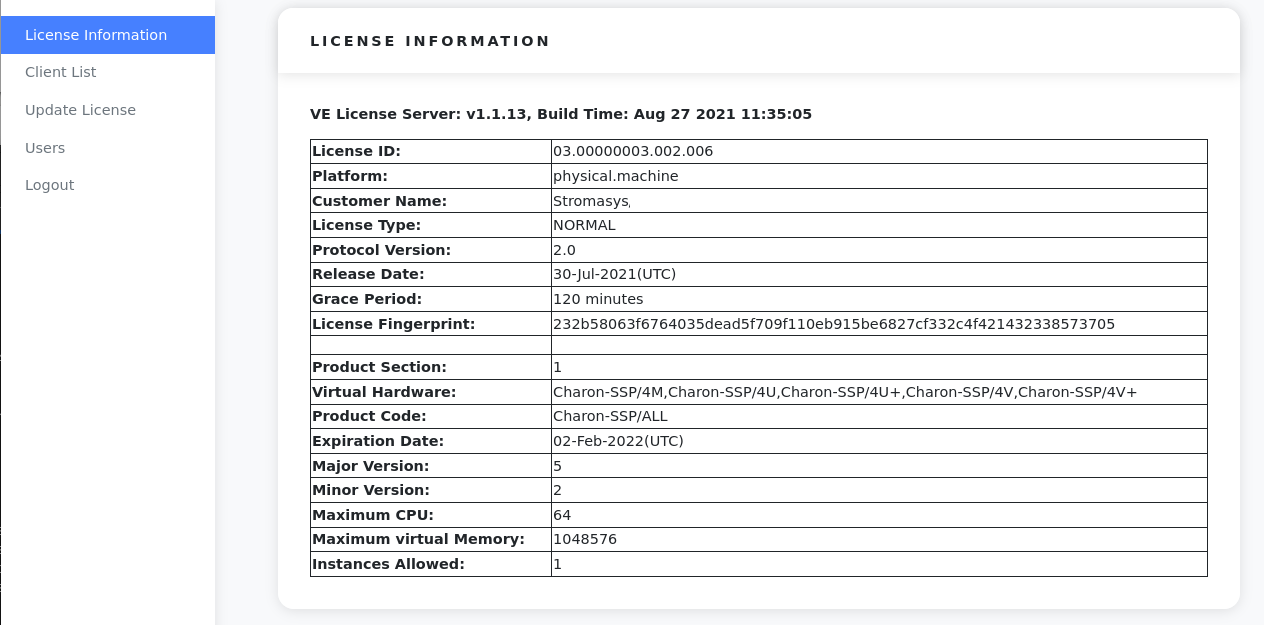
See VE License Server Web-based Management GUI and Additional Configuration Options - the config.ini File for more information.
© Stromasys, 1999-2024 - All the information is provided on the best effort basis, and might be changed anytime without notice. Information provided does not mean Stromasys commitment to any features described.